- VBox
- adjust · adjuster · dialog · dismiss_action · full_request · intercept · ismapped · map · priority · ref · save · size · unmap
Layout¶ ↑
- class Deck¶ ↑
- Syntax:
- h.Deck()
- Description:
- A special kind of box which is like a card deck in which only one card is shown at a time. Cards are indexed according to the order of the intercepted windows (0 is the first card).
Example:
from neuron import h, gui
from math import sin, cos

deck = h.Deck()
deck.intercept(1)         # all following windows will be placed in the deck
ncard = 10                # there will be 10 cards in the deck

def mkgraph(n):
    """make a new graph"""
    g = h.Graph()          # the new graph is declared
    g.size(-4, 4, -4, 4)   # and given a size
    g.begin()
    for i in xrange(629):
        t = 0.01 * i
        g.line(3 * cos(t), 3 * sin(n * t))
    g.flush()              # draw the plot

def flip_function(i):
    """return a function that flips to the ith card"""
    return lambda: deck.flip_to(i)

mkgraph(1)                 # make the first graph, so it will appear while the other
deck.intercept(0)          # 9 graphs are being made
deck.map()                 # put the deck on the screen
deck.flip_to(0)            # show the first plot of the deck
h.xpanel('flip to')        # create a panel titled "flip to"
for i in xrange(ncard):    # create radio buttons which will bring each card to the front
    h.xradiobutton('card %d' % (i + 1), flip_function(i), i == 0)

h.xpanel()                 # close off the set of panel commands

for i in xrange(1, ncard): # now that the first card appears on the screen, make the rest
    deck.intercept(1)      # reopen the deck
    mkgraph(i + 1)         # make a plot for each other card
    deck.intercept(0)      # close the deck
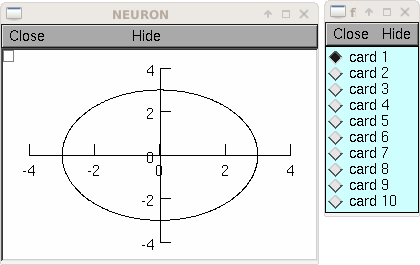
makes a deck of windows showing the plots \(\{(3\cos(t), 3\sin(i\,t)): 0 \le t \le 2\pi \}\), where \(i=1 \ldots 10\). You can see in this example how the panel of radio buttons enhances your ability to access a particular plot.
- Deck.intercept()¶ ↑
- Syntax:
- .intercept(1 or 0)
- Description:
- When the argument is 1, all window creation is intercepted and the window contents are placed in a deck rather than independently on the screen.
- Deck.map()¶ ↑
- Syntax:
.map("label")
.map("label", left, top, width, height)
- Description:
- Make a window out of the deck. Left and top specify placement with respect to screen pixel coordinates where 0,0 is the top left. Width and height are ignored (the size of the window is the sum of the components)
Example:
from neuron import h, gui

d = h.Deck()
d.map()             # actually draws the deck window on the screen
creates an empty deck window on the screen.
Warning
The labeling argument does not produce a title for a deck under Microsoft Windows.
- Deck.unmap()¶ ↑
- Syntax:
- .unmap()
- Description:
- Dismiss the last mapped window depicting this deck. This is called automatically when the last hoc object variable reference to the deck is destroyed.
- Deck.save()¶ ↑
- Syntax:
- .save("procedure_name")
- Description:
- Execute the procedure when the deck is saved. By default a deck is saved by recursively saving its items which is almost always the wrong thing to do since the semantic connections between the items are lost.
- Deck.flip_to()¶ ↑
- Syntax:
- .flip_to(i)
- Description:
- Flip to the i'th card (window) in the deck. (-1 means no card is shown)
- Deck.move_last()¶ ↑
- Syntax:
- .move_last(i)
- Description:
- Moves the last card in the deck so that it is the i'th card in the deck.
- class VBox¶ ↑
- Syntax:
h.HBox()
h.HBox(frame)
h.VBox()
h.VBox(frame)
h.VBox(frame, 0or1)
- Description:
A box usually organizes a collection of graphs and command panels, which would normally take up several windows, into a single window. Anything which can have its own window can be contained in a box.
As with all classes, a box must have an object reference pointer, and can be manipulated through this pointer. You must use the .map command to make a box appear on the screen.
A VBox with a second arg of 1 makes a vertical scrollbox.
HBox() tiles windows horizontally.
VBox() tiles windows vertically.
The default frame is an inset frame. The available frames are:
- 0
- inset (gray)
- 1
- outset (gray)
- 2
- bright inset (light gray)
- 3
- none (sea green)
Example:
from neuron import h, gui
b = h.VBox(2)
b.map()
creates an empty box on the screen with a light gray inset frame.
- VBox.intercept()¶ ↑
- Syntax:
box.intercept(1)
box.intercept(0)
- Description:
- When the argument is 1, all window creation is intercepted and the window contents are placed in a box rather than independently on the screen.
Example:
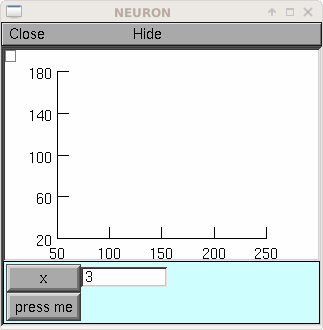
from neuron import h, gui

vbox = h.VBox()
vbox.intercept(1)   # all following creations go into the "vbox" box
g = h.Graph()
h.xpanel("")
x = h.ref(3)
h.xpvalue('x', x)

def on_button_press():
    print 'you pressed the button'

h.xbutton("press me", on_button_press)

h.xpanel()
vbox.intercept(0)   # ends intercept mode
vbox.map()              # draw the box and its contents
- VBox.map()¶ ↑
- Syntax:
.map("label")
.map("label", left, top, width, height)
- Description:
- Make a window out of the box. Left and top specify placement with respect to screen pixel coordinates where 0,0 is the top left. If you wish to specify the location but use the natural size of the box then use a width of -1.
Example:
from neuron import h, gui
b = h.VBox(2)
b.map()          # actually draws the box on the screen
creates an empty box on the screen with a light gray inset frame.
- VBox.unmap()¶ ↑
- Syntax:
b.unmap()
b.unmap(accept)
- Description:
Dismiss the last mapped window depicting this box. This is called automatically when the last hoc object variable reference to the box is destroyed.
If the box is in a VBox.dialog() the argument refers to the desired return value of the dialog, 1 means accept, 0 means cancel.
- VBox.ismapped()¶ ↑
- Syntax:
- bool = box.ismapped()
- Description:
- Return 1 if box has a window (mapped and not enclosed in another box). Otherwise return 0.
- VBox.size()¶ ↑
- Syntax:
- box.size(neuron_array_ref)
- Description:
- If box is mapped and not enclosed in another box, i.e has a window, return left, top, width, height of the window in the first four elements of the array pointed to by the arg.
Example:
from neuron import h, gui
import neuron
import numpy

def size(obj):
    if obj.ismapped():
        s = numpy.array([0, 0, 0, 0], 'd')
        obj.size(neuron.numpy_element_ref(s, 0))
        print obj.hname(), s[0], s[1], s[2], s[3]

# create two vboxes, but only map 1
vb1, vb2 = h.VBox(), h.VBox()
vb1.map()

def show_all_sizes():
    vboxes = h.List('VBox')
    for i in xrange(int(vboxes.count())):
        size(vboxes.object(i))

show_all_sizes()

# can now manually resize the mapped VBox and call show_all_sizes again,
# if desired
- VBox.save()¶ ↑
- Syntax:
box.save("proc_name")
box.save("string")
box.save(str, 1)
box.save(str, obj)
- Description:
Execute the procedure when the box is saved.
The default save procedure is to recursively save all the items in the box. This is almost always the wrong thing to do since all the semantic connections between the items are lost.
Generally a box is under the control of some high level object which implements the save procedure.
box.save("string") writes stringn to the open session file.
box.save(str, 1) returns the open session file name in str.
- VBox.ref()¶ ↑
- Syntax:
- .ref(objectvar)
- Description:
The object is referenced by the box. When the box is dismissed then the object is unreferenced by the box. This provides a way for objects that control a box to be automatically destroyed when the box is dismissed (assuming no other objectvar references the object). When .ref is used, the string in .save is executed in the context of the object.
Note: When objects are inaccessible to hoc from a normal objref they can still be manipulated from the interpreter through use of their instance name, ie the class name followed by some integer in brackets. As an alternative one may also use the dismiss_action() to properly set the state of an object when a box it manages is dismissed from the screen.
- VBox.dismiss_action()¶ ↑
- Syntax:
- .dismiss_action("command")
- Description:
- Execute the action when the user dismisses the window. Not executed if the box is not the owner of the window (ie is a part of another deck or box, VBox.intercept()). Not executed if the window is dismissed with an VBox.unmap() command. For the window to actually close, the command should call unmap on the box.
- VBox.dialog()¶ ↑
- Syntax:
b = box.dialog("label")
b = box.dialog("label", "Accept label", "Cancel label")
- Description:
Put the box in a dialog and grabs mouse input until the user clicks on Accept (return 1) or Cancel (return 0).
The box may be dismissed under program control by calling b.unmap(boolean) where the argument to VBox.unmap() is the desired value of the return from the dialog.
- VBox.adjuster()¶ ↑
- Syntax:
- b.adjuster(start_size)
- Description:
- When the next item is mapped (see VBox.intercept()), its size is fixed at start_size in the sense that resizing the box will preserve the vertical size of the item. Also an adjuster item in the form of a narrow horizontal space is placed just below this item and the "fixed" size can be changed by dragging this space. (also see VBox.adjust()). When adjusters are used, then the full_request() method should be called on the top level box which is actually mapped to the screen before that top level box is mapped. If full_request is not called then the box will get confused about the proper size of items during window resizing or box adjusting.
- VBox.adjust()¶ ↑
- Syntax:
b.adjust(size)
b.adjust(size, index)
- Description:
- Change the vertical size of the item mapped just before the first VBox.adjuster() was invoked. If multiple adjusters are at the same box level, the index can be used to specify which one is to be adjusted.
- VBox.full_request()¶ ↑
- Syntax:
- b.full_request(1)
- Description:
- This works around an error in box management during resize for complicated boxes involving panels with sliders, graphs, and/or VBox.adjuster() . If the drawing of boxes does not work properly, this method can be called on the top level box (the one that owns the window) before mapping in order to force a recalculation of internal component request sizes during resize and adjuster changes.
- VBox.priority()¶ ↑
- Syntax:
- box.priority(integer)
- Description:
When a session file is created, the windows with higher priority (larger integer) precede windows with lower priority in the file. This allows windows that define things required by other windows to be saved first. For example, a CellBuild window has a larger priority than a PointProcessManager which needs a section declared by the cell builder. A MulRunFitter has even lower priority since it may refer to the point process managed by the manager. Default priority is 1.
The priority scheme, of course, does not guarantee that a session file is consistent in isolation since it may depend on windows not saved.
Priority range is -1000 to 10000
Some existing priorities are:
SingleCompartment 1000
CellBuild 1000
PointProcessManager 990
Electrode 990
PointGroupManager 980
NetworkReadyCell 900
ArtificialCell 900
NetGUI 700
SpikePlot 600
Inserter 900
RunFitter 100
FunctionFitter 100
MulRunFitter 100